 Shruti Kaushik
A personalised preview lets you see how Klype could represent a particular business before starting from an empty workspace. It contains a business-specific introduction, an intended audience and prepared example outputs. The screenshot uses a fictional QA business, not a customer testimonial.
A clear way to judge a personalised preview before claiming a workspace or authorising a trial.
- Your own invitation link
- An accurate business description to compare
- A separate check of checkout terms
Why this gets difficult
Seeing your name on a page is pleasant, but it is not enough to judge personalisation. The useful test is whether the page understands what you do, who the material is for and which claims it can support. A beautifully written sample can still be based on an incorrect assumption about your service.
Evaluate a preview in two stages. First inspect the business understanding and the examples. Then inspect the account and payment handoff. A good example is not proof that a card was saved, and a successful sign-in is not proof that a paid subscription has started. Keeping the stages separate makes problems easier to spot.
Look beneath the personalised greeting
Maya, here is your personalised content platform. We help you grow your business.
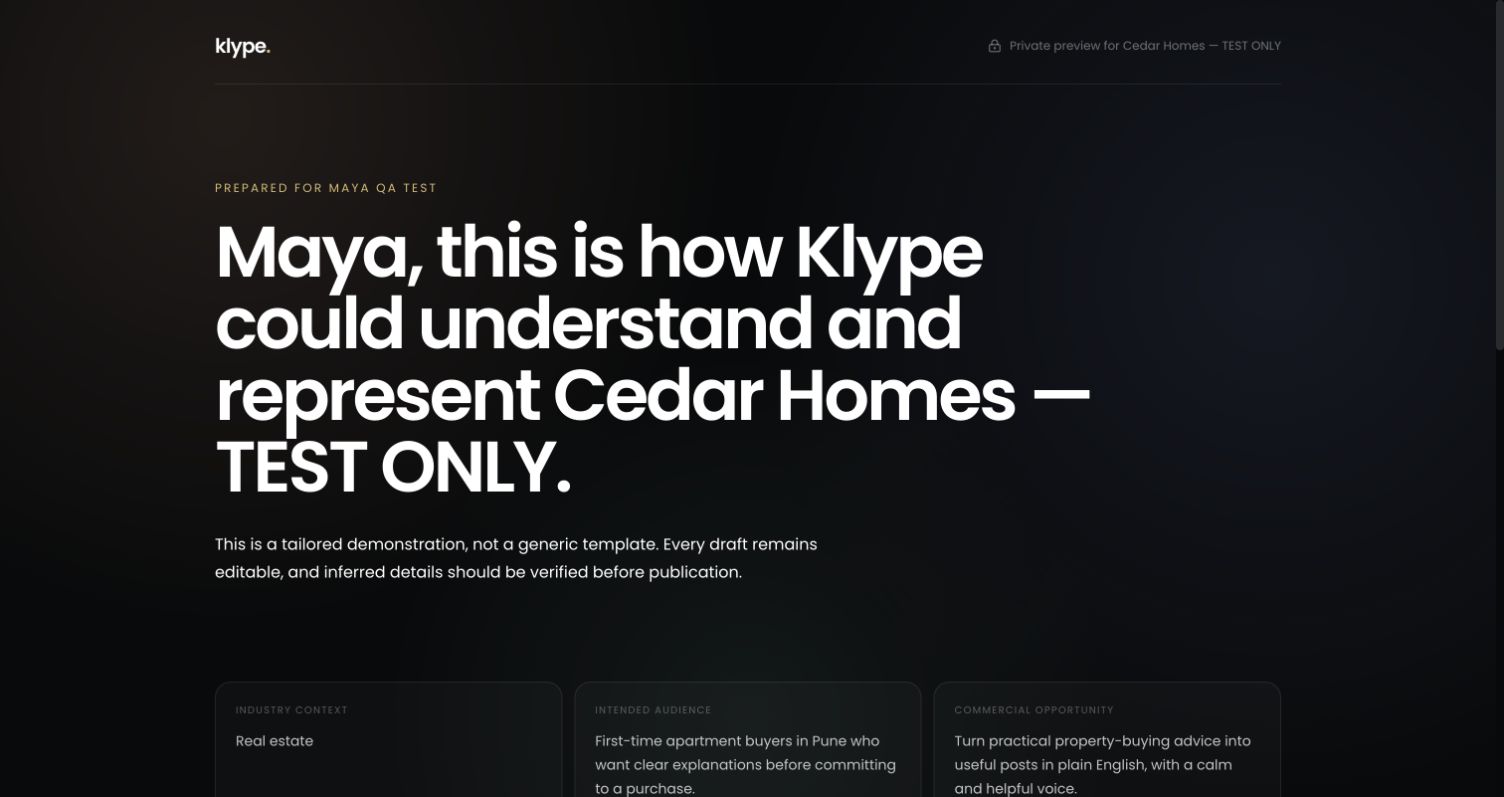
The preview describes Cedar Homes as a fictional property adviser for first-time apartment buyers. The useful question is whether its prepared examples explain inspections, maintenance costs and purchase preparation in a way that fits that service.
The second reading evaluates the underlying context instead of the greeting. The published screenshot is a fictional QA example. Its sample material is prepared demonstration content, not evidence of a real customer result or an output generated while you are reading this guide.
Follow the workflow, screen by screen
Use these screens as a map, then apply the example to your own workspace. Each step explains what to look for, not just which page to open.
Real product captures from 9 September 2026, using the fictional Maya / Cedar Homes test workspace. These show the interface, not the article’s example being generated. The admin balance is not a plan allowance. Select a screenshot to inspect the full image, including the sidebar.
01Inspect the personalised example
Read the industry, audience and opportunity beneath the greeting. This is the part that should be meaningfully specific.
02Check the business context
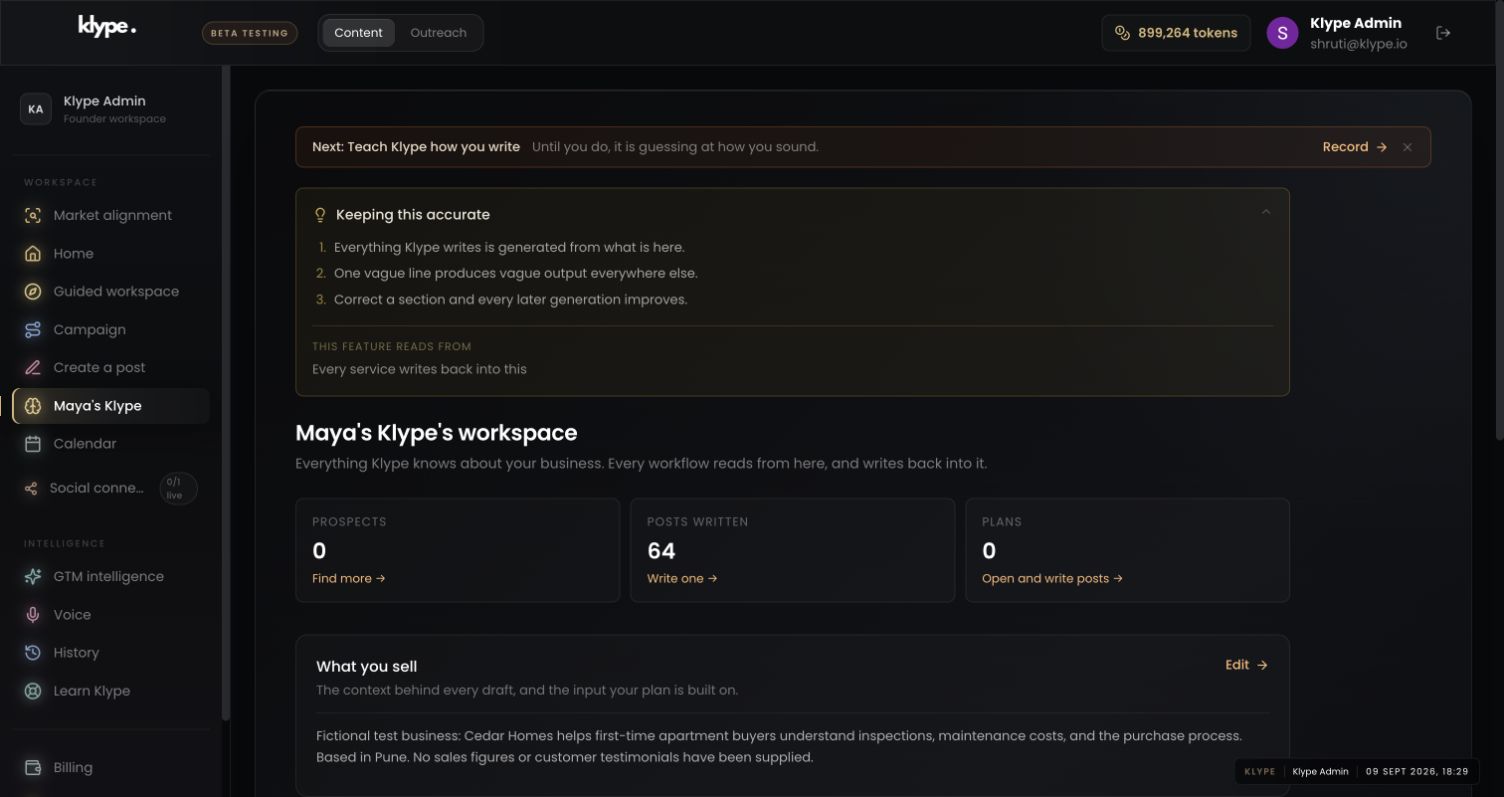
After claiming your invitation, inspect the named workspace. Verify the business details rather than assuming the handoff copied every detail correctly.
03Set a writing reference
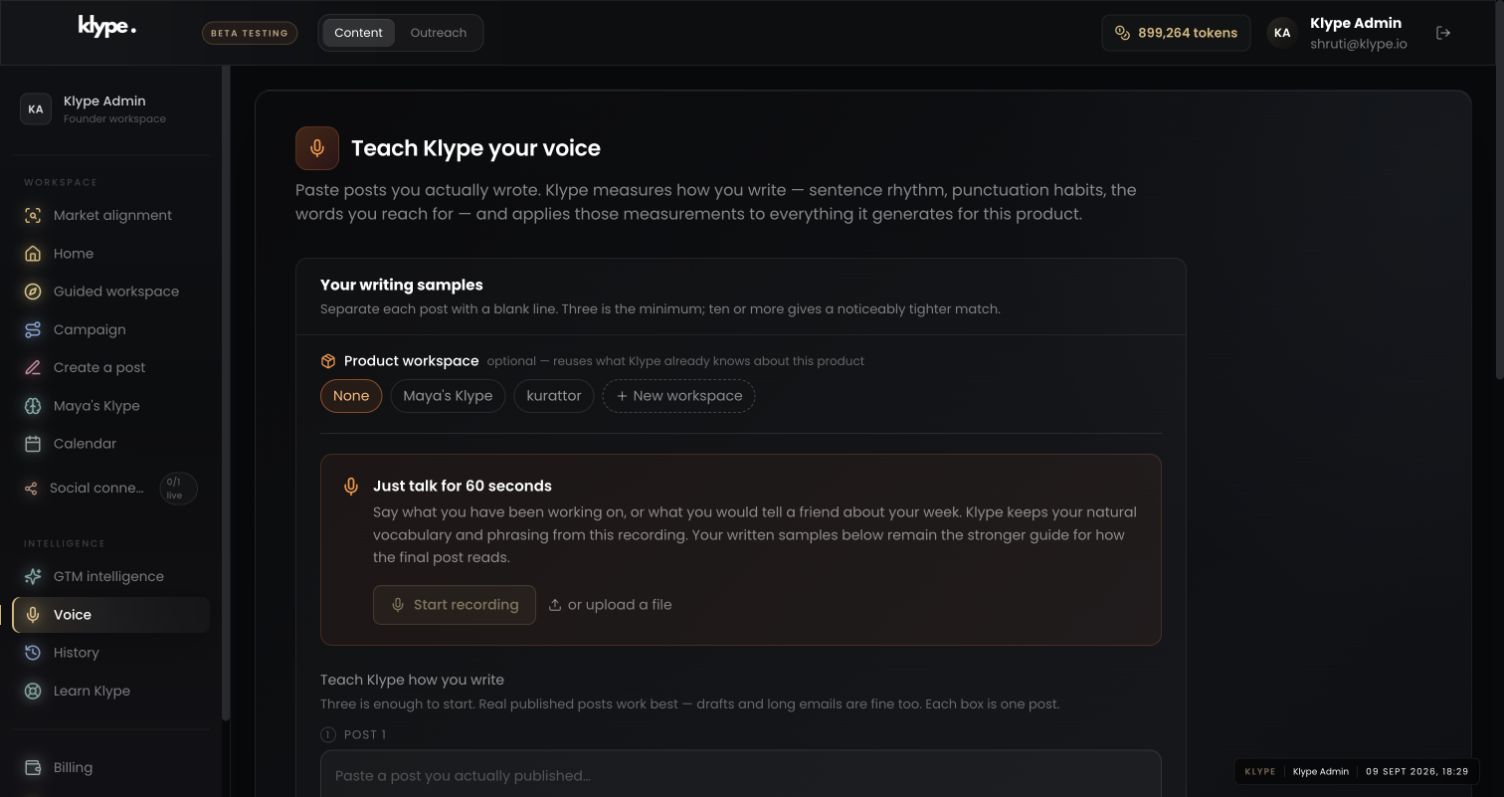
Add your own writing samples if you want the next draft to reflect your writing. A personalised business preview does not automatically supply your voice.
Before using a prepared sample, check: does this describe my actual service, the reader I want to help and a claim I can support? Correct the workspace first if the answer is no. Keep any private invitation link out of public posts.
Replace these example details with your own facts. This is a starting point, not a promise of a particular output.
Check the business understanding first
Read the industry, audience and opportunity shown on the preview. Ask whether they accurately describe your business. Prepared samples demonstrate a possible direction; they are editable and are not evidence that the platform has independently verified every claim. In this demonstration the sample post was manually prepared, not generated during the test.
Follow your own invitation link
Use Claim workspace and start trial on the preview you received. If you already have a Klype account, choose Sign in from registration. The invitation should stay with that handoff. Use the email address the invitation was intended for when an email restriction applies. Do not forward private preview links as public portfolio links.
Review the trial terms separately
Claiming a workspace and authorising a subscription are different steps. Read the amount, billing interval, trial allowance, first-charge date and cancellation terms shown at checkout before proceeding. A preview does not mean a payment has happened. This walkthrough did not make a payment or save a card.
Continue with the prepared context
After a successful claim, open the named workspace and review What you sell, Who you sell to and Positioning. In the tested Google sign-in path, those details carried into Maya's Klype. Add your own writing samples in Voice and correct any business details before using the workspace for real content. The example invitation itself is not published with this guide.
Try it with your own work
Choose one prepared example and mark three kinds of text: accurate business facts, reasonable interpretations and details that need correction. Keep the first, review the second and correct the third. That is a practical way to decide whether the preview gives you a useful head start.
Before authorising payment, read the current amount, currency, billing interval, first-charge date, cancellation terms and allowance displayed in checkout. Do not infer those from a screenshot or an invitation title. If a handoff loses the invitation or shows unexpected terms, pause and ask for the account or checkout issue to be resolved. The walkthrough itself does not confirm a live charge.
When the result needs work
Check current feature availability and checkout terms in the app.